Audio Player now supports a new track_downloaded analytics event for the track download button! 
The event is sent to Google Analytics whenever a visitor downloads a track, helping you track download activity and better understand which audio gets the most interest.
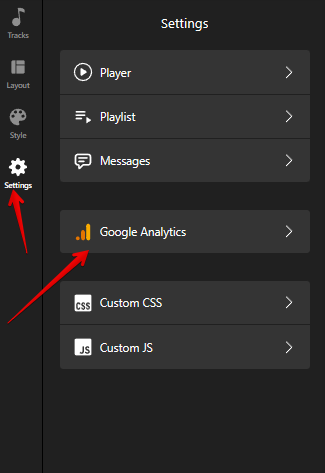
You can find and configure the event under Settings → Google Analytics → Add Event → Track Downloaded.
Key Details
How to find the GA integration?
You can find the Google Analytics integration on the Settings tab of your widget’s settings:
Make sure Google Analytics or Google Tag Manager is installed on your site. If both are set up, the click stats will be sent to both platforms.
What info can you track?
With the GA integration, you can track whenever a user clicks to a download button. Each time this happens, an event is recorded and sent to your Google Analytics or Google Tag Manager account.
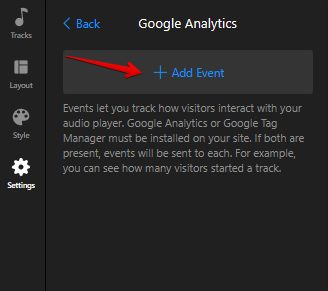
To add a new event, simply click the Add Event button:

What info is included in the event?
The event will include a custom name and these parameters:
- Source
- App
- Widget ID
- Track Name
- Artist Name
- Track ID
- Source Type

These details will appear in your stats, giving you deeper insights into what’s resonating with your audience.
Custom parameters
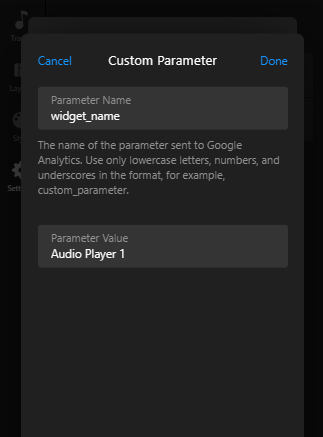
You can also add custom parameters, like the widget name, for more detailed tracking. For example:


How did the feature work for you? Let us know in the comments


