To recreate Well Gallery (Slideshow) style (in Homepage) in Squarespace 7.1 site.
- View demo - Pass: abc
#1.1. First, click Add Section

#1.2. Click Image > Choose Section with (i) icon

#1.3. Hover on top right of section > Click EDIT SECTION

#1.4. Make sure you use Grid: Masonry

#1.5. at Anchor Links, enter word: well-gallery

#1.6. Hover on Page where you use Grid: Masonry > Click Gear icon

Click Advanced > Paste this code.
If you use Personal/Basic Plan and your plan doesn’t support Injection, you can see #2.1.
<!-- 05.26c08v2 Well Gallery -->
<script>
window.GalleryToggleConfig = {
  autoplay: false,
  autoplayDelay: 3000,
  effect: 'slide',
  hoverOpacity: 0.7,
  slideBackground: 'transparent',
  slideMaxHeight: '80vh',
  slideMaxWidth: '60%',
  sectionSelector: 'section[id*="well-gallery"]',
  labelPrev: 'PREV',
  labelNext: 'NEXT',
  labelShowThumbnails: 'SHOW THUMBNAILS',
  onShowSlideshow: null,
  onShowMasonry: null,
  onSlideChange: null
};
</script>
<script src="https://code.beaverhero.com/gallerysmasonry/05.26c08v2wellgallery.js"></script>

#2.1. If you use Personal/Basic Plan and your plan doesn’t support Injection, you can edit current page (page where you use Grid: Masonry) > Then add a Block > Choose Markdown.

Then add this code into Markdown.
<script>
window.GalleryToggleConfig = {
  autoplay: false,
  autoplayDelay: 3000,
  effect: 'slide',
  hoverOpacity: 0.7,
  slideBackground: 'transparent',
  slideMaxHeight: '80vh',
  slideMaxWidth: '60%',
  sectionSelector: 'section[id*="well-gallery"]',
  labelPrev: 'PREV',
  labelNext: 'NEXT',
  labelShowThumbnails: 'SHOW THUMBNAILS',
  onShowSlideshow: null,
  onShowMasonry: null,
  onSlideChange: null
};
</script>
<script src="https://code.beaverhero.com/gallerysmasonry/05.26c08v2wellgallery.js"></script>

#2.2. To rename text PREV/NEXT/SHOW THUMBNAILS
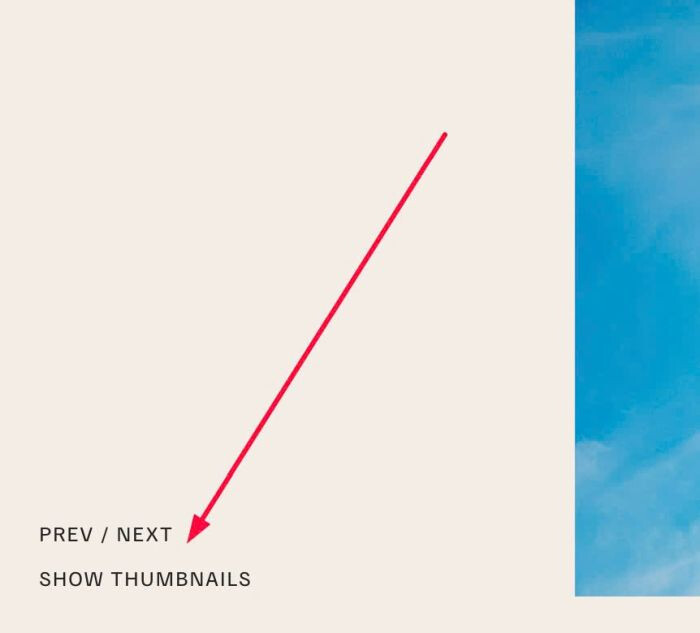
You can change these lines
labelPrev: 'PREV',
labelNext: 'NEXT',
labelShowThumbnails: 'SHOW THUMBNAILS',
