Elfsight widgets come with lots of built-in customization options, but if you want to take your designs to the next level, adding a bit of CSS (Cascading Style Sheets) is a great way to make your widget uniquely yours 
CSS Basics and Elfsight Classes
CSS controls how your website looks — things like layout, color, fonts, and spacing. While HTML structures your content (text, buttons, images), CSS makes everything look pretty.
You can apply styles to specific parts of your widget by targeting HTML elements with CSS selectors like classes, IDs, or tags.
To apply custom styles to your Elfsight widget, you’ll need to inspect its HTML code and find the right classes. You can spot them in the widget code inside the class="" attribute:
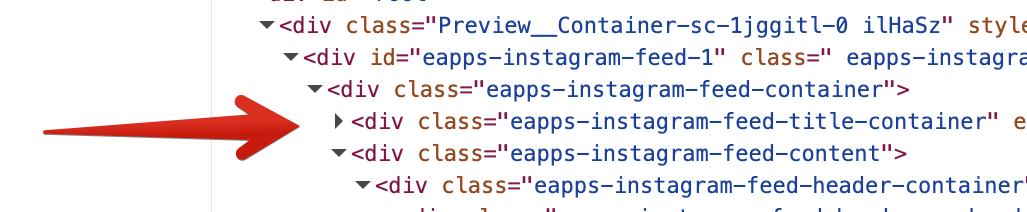
Classes: Stable vs Temporary
Not all classes in the code are useful for CSS, so let’s break down the two main types:
Stable classes
These are your go-to classes! Stable classes are predictable and won’t change over time, which makes them perfect for styling with CSS. They usually look clean and structured, like es-post:

To apply styles to a stable class, just put a dot (.) before the class name. For example, if you want to round the corners of posts in an Instagram Feed widget, use:
.es-post {
border-radius: 3px;
}
If you see classes starting with “es-”, stick with those. They’re usually the most reliable!
Temporary classes
Some classes are temporary. They’re auto-generated, can change any time, and might mess up your customizations. Temporary classes often look like this:
- Random character strings like
dgCyQRorfLyMPb:

- Some class names may combine stable parts (e.g.,
Icon__Container-sc) with temporary suffixes (eg,-11h3u-0)

Try to avoid using these in your CSS. If you see combined class names (e.g., Icon__Container-sc), just use the stable base part and leave out the suffix (e.g., -11h3u-0).
Note For combined class names, you can use
[class*="stable-part"]to target the stable part, even if the whole class name changes.
For example, in the Calculator widget, you could target the button text color like this:
[class*="ButtonBase__Ellipsis-sc"] { color: #fff; }
How to Add CSS to Your Widget
Ready to create your own custom styles? Let’s do this!
As an example, we’ll change the background color of the dropdown menu in the Website Translator widget.
Open the widget editor
Head to your Elfsight Dashboard, find the widget you want to style, and click “Edit.” You’ll be able to see the changes as you go:

Inspect with DevTools
Open DevTools in your browser (Ctrl + Shift + C on Windows or Cmd + Option + C on Mac), then hover over the widget element you want to tweak.
This will show you the element’s HTML and styles in the DevTools panel:

Copy the class of the element
Once you’ve found the element you want to change, click on it and copy its class name:

Add the class to Custom CSS
In the widget editor, go to the Style/Appearance or Settings tab and scroll to the Custom CSS section. Paste the class name you copied:

Make sure you're using a stable class
If the class you copied has a random suffix, cut it off and stick with the base name. For example:
[class*="dropdown__Container-sc"]
If it’s a stable class (like .es-title), just add the dot before it.
Apply your styles
Now, add curly braces {} after the class name, and inside, write the styles you want to apply (like color, padding, borders).
For example, to change the background color of the dropdown menu in the Translator Website widget, try:
[class*="dropdown__Container-sc"] { background-color: #f4eecd; }

Bonus: Want to learn more about CSS? Check out this CSS Tutorial on W3Schools for more details.
Tip to customize popup elements
For the Popup elements, always add the .global-styles class first, followed by a comma before other classes. This helps ensure your custom CSS works perfectly inside the popup.
Publish changes
Don’t forget to Publish your widget when you’re done — this will apply your new styles live on your website!
Tips for Mobile vs Desktop CSS
All Elfsight widgets are responsive by default and adapt to any screen size, but if you want them to look a bit different on mobile you can fine-tune things like height, spacing, or font size.
The easiest way to do this is with CSS media queries, which let you apply styles based on screen width. A common mobile breakpoint is up to 480px, though you can adjust it to match your website’s breakpoints.
For mobile screens only (up to 480px wide)
Wrap your styles inside @media (max-width: 480px) { … }. Here’s an example:
@media (max-width: 480px) {
  .eapps-facebook-feed-content-container {
    height: 300px;
  }
}
For desktop screens only (from 481px wide and above)
Wrap your styles inside @media (min-width: 481px) { … }. For instance:
@media (min-width: 481px) {
  .eapps-facebook-feed-content-container {
    height: 500px;
  }
}
In the examples above, the widget’s height is set to 300px on mobile and 500px on desktop. Feel free to use these media queries for your CSS!
Folks, we’d also like to remind you about our CSS Codes category, where you can find ready-made solutions for different apps.
